Approving Payments and Electronically Signing Cheques
Describes managements process for approving payments and electronically signing cheques.
Preamble
Before accounts payable payments can be processed they must be reviewed and approved. Processed means distributing an EFT file to the bank for payment, or printing signed cheques. The system can store encrypted digital signatures and print them on the cheques meaning that management can remotely review and approve payables payments and once approved their signatures will be printed on the cheques. This facilitates the payables process even when management isn't physically on-hand to review and sign cheques in person.
For instructions on how to create and upload secure digital signatures, see Setting up automatic cheque signatures.
Authorized Signing Officers
Each company will have their own rules about who can sign cheques (Authorized Signing Officers) and how many people must sign-off on payments (Signing Instructions). Authorized Signing Officers and Signing Instructions can be set up on a per bank account basis from the chart of accounts.
Note: if you do not set up authorized signing officers then any payments will be considered approved when posted and can be processed immediately by the accounts payable department. In this case any cheques will be printed without signatures and management will have to sign them physically. However, EFT payment files could be uploaded to the bank (and paid) without further authorization.
Reviewing and Approving Payments
Once the Accounts Payable department generates payments they will be given the opportunity to send a notification to any of the available signing officers. Typically they may choose signing officers that regularly review payments saving more senior members of the management team from being needlessly notified, but in the case someone isn't available, other signing officers can be chosen.
A notification will be emailed to each signing officer with the subject Request for approval of payments. The email will indicate which staff member created the payment run and a list of the payments that require approval. A link will also be included that links directly to the Approve and Process Payments page so management can conveniently link straight to the page for that payment run.
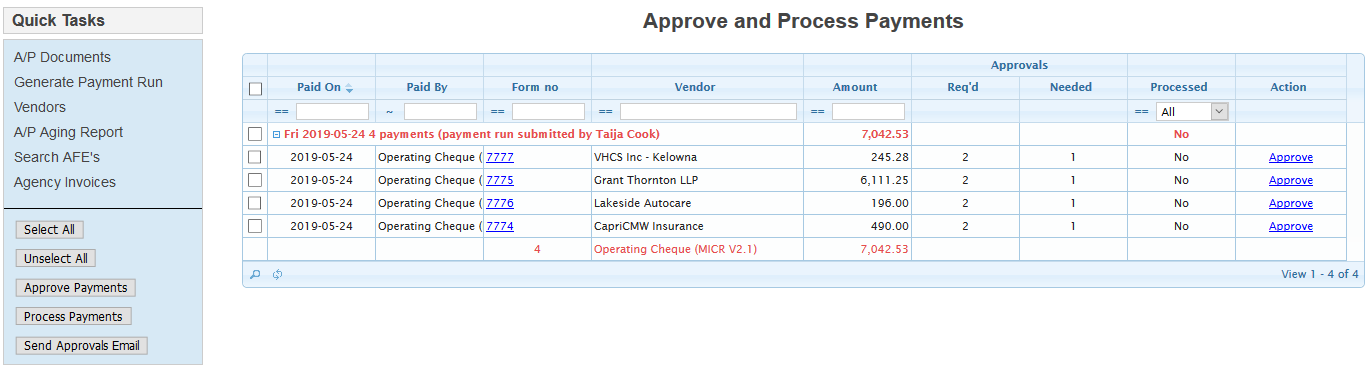
The Approve and Process Payments page will also list each payment and how it is to be paid (cheque, EFT, automatic withdrawal, etc.). The page will also indicate how many approvals are required (cheque signers, for example), and how many are still needed.
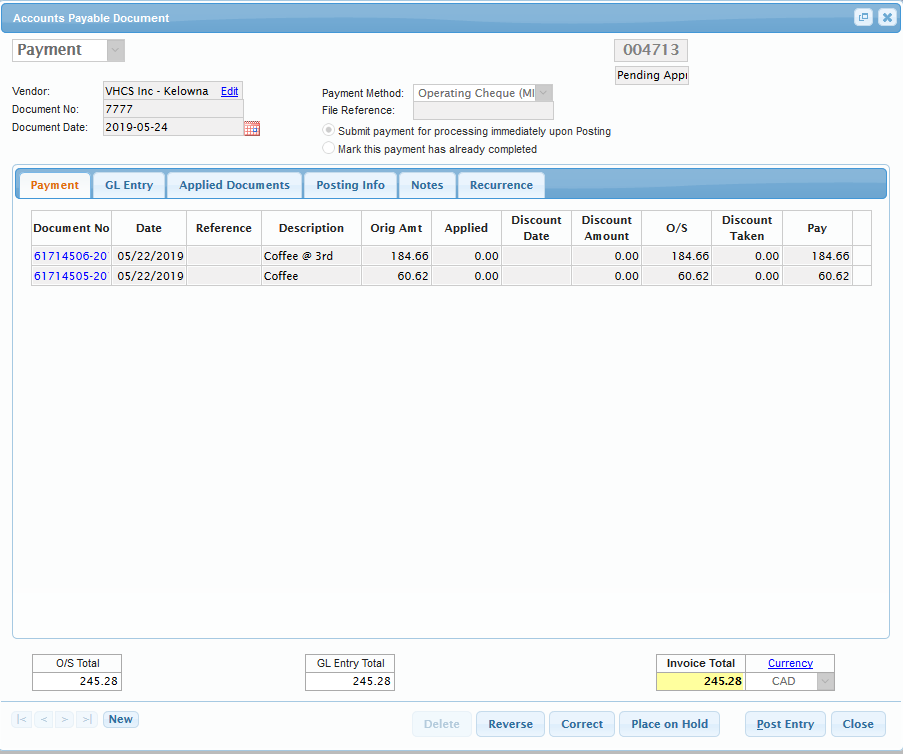
To effectively review a payment management should ensure that the vendor and payment method is correct and that the amount of the payment is only for authorized and approved invoice amounts. To verify this management should tap on the Form No hyperlink for each payment, which will pop up a payment screen showing the details of the payment including each invoice being paid and its amount. Management can drill-down further to each specific invoice by clicking on the Document No hyperlink for each invoice. A future version of this program will allow management to further drill down and display the actual invoice right on the screen, but at this time that functionality isn't completed. Management can review invoices by browsing to the Payables folder corresponding to the payment run and manually opening each invoice on-screen. Original invoices for each invoice paid on a payment run should be saved in the appropriate payables folder for that payment run.
Once management is satisfied that each invoice is approved they can close the Payment Details window (and any invoice windows opened), and then Approve the payment by either selecting the Approve action (in the right-hand action column), or by ticking the checkbox beside multiple payments and tapping the Approve Payments button in the Quick Tasks side menu. Approving batches of payments is generally recommended over approving individual payments as each time an email is sent back to the accounts payable person who created the payment notifying them that it is approved. Approving a batch means they will only get one email instead of several by doing them individually.
If management does not agree with a payment they should forward the Request for approval of payments email back to the accounts payable person who created it with a note as to which payment they didn't approve and why. The payment can then be corrected and re-sent for approval separately from the rest of the payment run.
Suggested Steps for Approving Payments
In a normal accounts payable process invoices should be approved by management before they are given to the accounts payable department for data-entry and queuing for payment. In practice many companies allows their accounts payable departments to receive and enter invoices in one step, and then management approves invoices and signs-off on the payments in another step.
Here's a suggested summary of the steps to Review and Approve payments given that scenario:
- Receive the Request for approval of payments email;
- Click on the hyperlink to open the Approve and Process Payments page;
- Open all the the PDF's for all invoices paid on that payment run:
- In Windows Explorer navigate to T:\Departments\Accounting\Admin\Payables\Posted;
- Double-click to navigate to the folder of the company you are approving payments for;
- Double-click on the Paid folder;
- Double-click on the fiscal year folder for the payment run;
- Double-click on the appropriate payment run folder (E.g. 190130 Cheque for the cheque run created on Jan. 30, 2019);
- There should be a file for each invoice being paid:
- Each invoice should already be approved by the manager authorizing the purchase;
- PDF's may be stamped with a dynamic stamp showing the date and time and name of the manager authorizing it;
- The authorizing manager may have physically signed the invoice before it was scanned;
- There may be an email accompanying the invoice showing authorization for the invoice;
- Click on the Form No field for each payment;
- Review each invoice being paid comparing the physical invoice to the data-entered one and ensuring proper authorization and G/L account coding of the amounts and taxes;
- Once satisfied each invoice being paid on the payment is appropriately authorized and correctly posted, close any payment details and invoice windows and tick the check-box beside the payment on the Approve and Process Payments page;
- Return to step 4 for each payment in the payment run;
- If any payments cannot be approved forward the Request for approval of payments email back to accounts payable with a notice of which weren't approved and why; and
- Once all other payments are ticked off, tap the Approve Payments button on the right-hand Quick Tasks menu.
Accounts Payable will receive a notification that they can continue processing the approved payments (print cheques or generate an EFT payment file to upload to the bank), and any un-approved one's will need to be corrected and re-sent for approval.
Audit Logging and Tracing
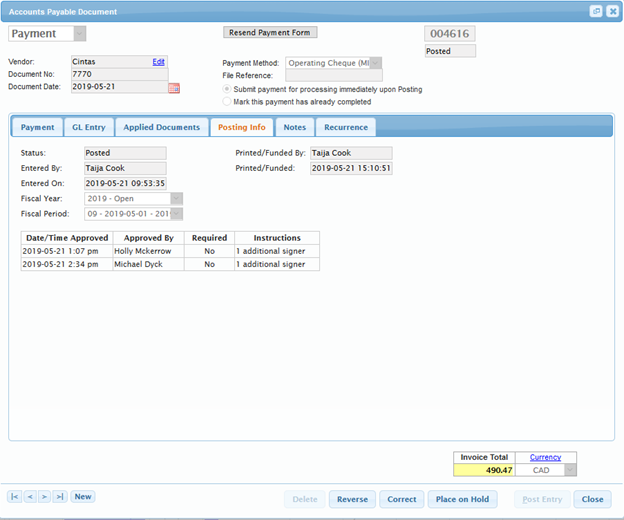
All invoices and payments are user, time and date stamped each time they are approved. To review these approvals open an accounts payable document (invoice, credit note, or payment) and then tap on the Posting Info tab.