
Customize Your Company’s Colour Scheme
Introduction
In this guide, we'll walk you through the process of setting up and customizing the colour scheme of Ignite ERP to match your company's branding. This feature can be especially useful to ensure you and your staff are working in the right company if your organisation includes more than one company.
Step 1: Access Advanced Options
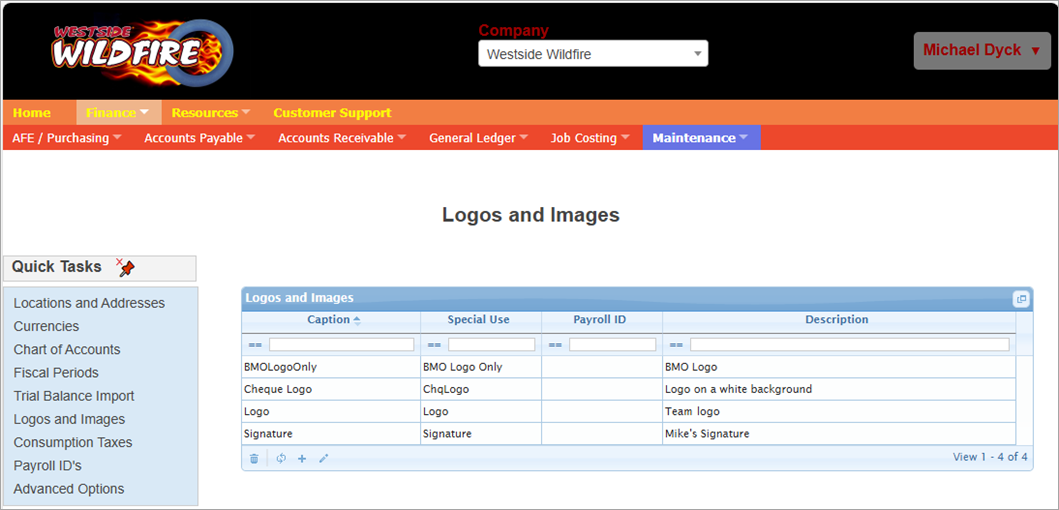
- Go to Finance > Maintenance > Advanced Options.
- The advanced options for the company will appear. In this place you may set many company options, reset user preferences, default choices, and customize advanced features.
Step 2: Clear Payroll ID’s
- If you are using payroll, the advanced options will filter to options specific to payroll by default.
- Clear the Payroll ID field and hit enter while the cursor is in the payroll ID field.
- You may receive warnings about options that are not set up properly. Click OK to bypass the warning.
Step 3: Customize Your Colour Scheme
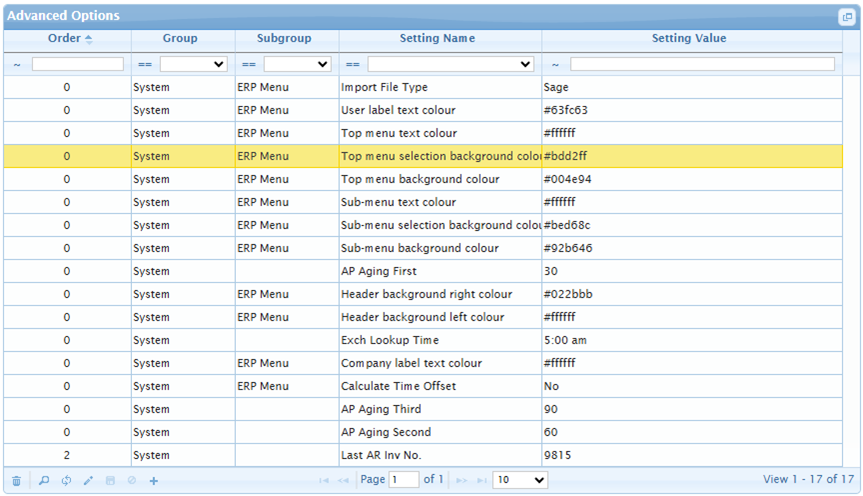
- The options that control the colour scheme are listed under the System Group, ERP Menu Subgroup.
- To add a new colour option, click the New + button and select the colour option you wish to add from the dropdown list.
- To edit an existing colour, select it from the options list and click the Edit (pencil) button.
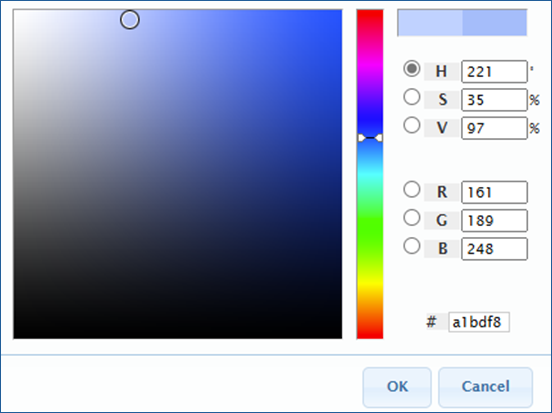
- To choose the colour click (or tab) to the Setting Value field to show the colour picker.
- You may use the colour picker to select the colour, or if you know the colour value, you may enter it using HSV (hue, saturation, value), RGB (red, green, blue), or hexadecimal values.
- Click Ok to select the colour and close the colour picker.
- Click the Save button at the bottom of the options list (or hit enter from the SettingName field) to save your changes.
Special Notes
- Repeat the above steps for each colour element that you want to change.
- If you specify different colours for the left and right side of the header background it will display a gradient fade between the two colours.
- If you delete the setting for a colour element it will revert back to a default, non-specified setting.
- The default colour scheme is black and white with greyscale menus.
Conclusion
By following these steps, you can easily update your company's logos and colour schemes in Ignite ERP to better reflect your branding.
If you have any questions, feel free to post a reply to this article, consult any of our other Support Centre resources, or use the Contact Us button at the bottom Support Centre page.